
1. Make the text genuinely big
Open Settings → Display & Brightness → Text Size and drag the slider well past where it looks right to you — you're not the reader. Turn on Bold Text while you're there. If things still feel small, Settings → Accessibility → Display & Text Size → Larger Text goes even bigger.
2. Zoom the whole screen
Settings → Display & Brightness → Display Zoom → Larger Text makes everything on screen — icons, buttons, menus — bigger at once. It's the single fastest improvement for tired eyes.
3. Calm the home screen
Take everything they don't use off the first screen: touch and hold an app → Remove App → Remove from Home Screen (the app stays on the phone, out of the App Library). Leave a single page with what matters, and put Phone, Messages, and Camera in the dock at the bottom, where they never move.
4. Put a magnifier one swipe away
Settings → Control Center: add Magnifier. Now a swipe opens a real magnifying glass that uses the camera — menus, price tags, thermostat dials. (It's the same idea our See Better tool builds on, with a simpler path to it.)
5. Turn the volume up — all of it
In Settings → Sounds & Haptics, raise the ringtone volume and turn on haptics so calls are felt as well as heard. If they use hearing aids, check Settings → Accessibility → Hearing Devices — most modern aids pair directly.
6. Teach the phone to speak and listen
Siri is often the easiest interface an older adult will ever use. Practice two sentences together: "Call Sarah" and "What time is it?" Saying it beats finding it.
7. Quiet the noise
Notifications are the #1 source of "what did I press?" moments. In Settings → Notifications, turn off everything that isn't Phone, Messages, or FaceTime. Fewer red badges, fewer accidental detours.
8. Set up the safety net
Three things, five minutes: add their trusted people as Emergency Contacts in the Health app's Medical ID, fill in the Medical ID basics, and show them how Emergency SOS works (on modern iPhones, hold the side button and a volume button). This is standard iPhone equipment — use it.
9. Write the passcode down — somewhere you both agree on
More help sessions die at the lock screen than anywhere else. Agree where the passcode lives (a card in the kitchen drawer beats a mystery). Set up Face ID together so the passcode is rarely needed at all.
When settings aren't enough
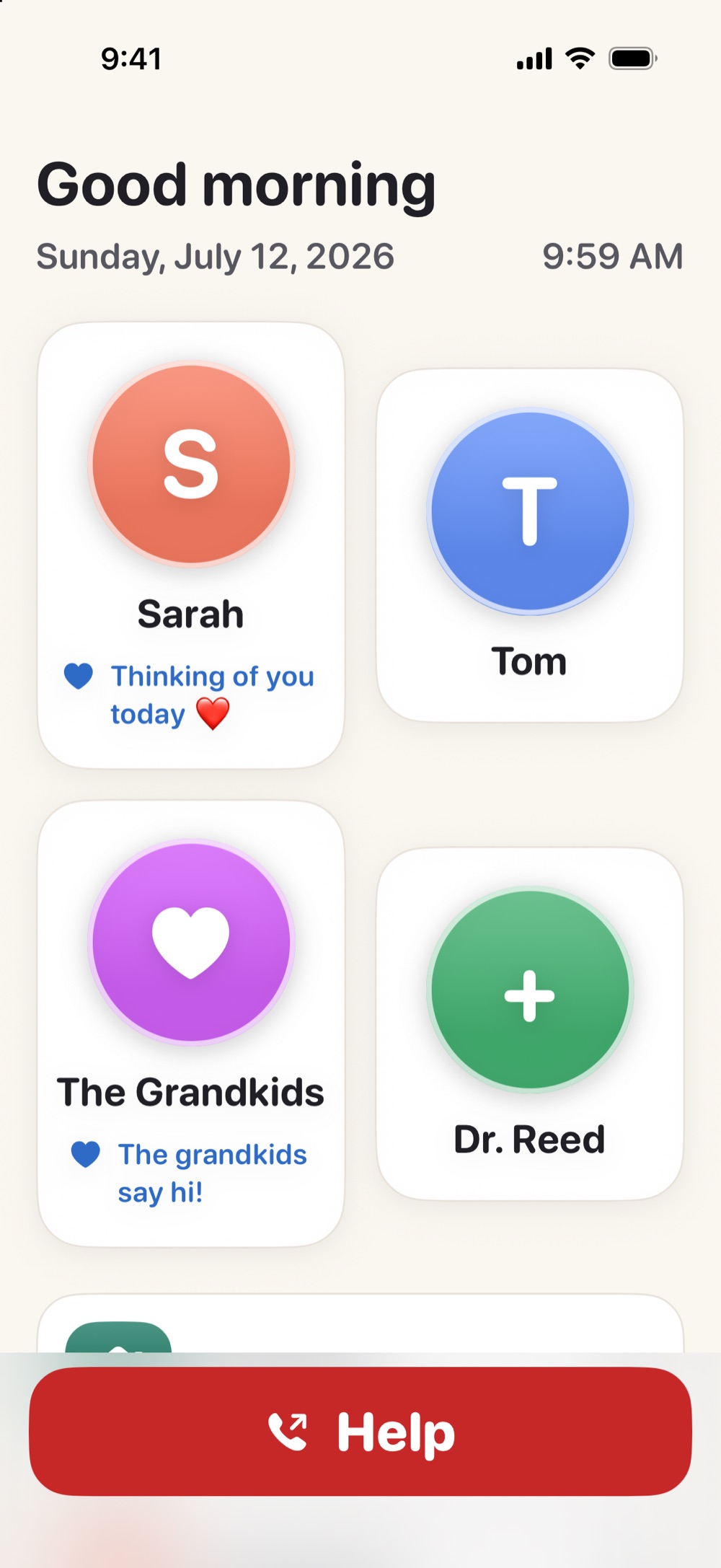
Settings make the iPhone quieter — they don't make it warm, and they can't stop the screen from feeling like a maze when attention or eyesight fades. If your parent still hesitates to call, or still gets lost between apps, there are two honest next steps. Apple's built-in Assistive Access can simplify the entire phone into a few big choices — our guide to iPhone's "senior mode" explains it, including its limits. And Simple Phone Helper takes a different path: it leaves their iPhone exactly as it is and gives them one calm place to live — the family as big faces, one tap to call or FaceTime, a Help button, and gentle tools for seeing and hearing. You set all of it up from your own phone, from anywhere. If this guide's steps helped but didn't finish the job, that's the gap it was built for.
Give them a calm place on the phone they already own
Simple Phone Helper is coming soon to the App Store. Join the launch list and we'll email you the day it's ready.
Join the launch listFAQ
What's the fastest single change to make an iPhone easier for a senior?
Display Zoom set to Larger Text. One setting makes icons, buttons, and menus bigger everywhere at once — then raise Text Size to match.
Should I delete the apps my parent doesn't use?
You usually don't need to delete them — remove them from the Home Screen instead. The phone stays capable, the first screen stays calm, and nothing is lost if they need an app later.
Do these changes limit what the iPhone can do?
No. Every step here adjusts how things look and sound, not what the phone can do. Anything removed from the Home Screen is still in the App Library, and every setting can be undone.